Resolve duplicates in Font Book
- Open Font Book and choose File > Resolve Duplicates.
- Choose Resolve Automatically to let Font Book handle them, or Resolve Manually to review each one.
- If you review them, Font Book marks the copy it recommends as Active. Keep it or pick another, then click Resolve This Duplicate or Resolve All Duplicates.
Font Book either turns off the other copies or moves them to the Trash. That depends on Font Book > Settings > Resolve duplicates by moving files to the Trash when possible.
Check for broken fonts
- Select fonts and choose File > Validate Selection.
- Green passed, yellow has a warning, red failed. Use the pop-up menu at the top to show only warnings or errors.
- Select the checkbox next to a failed font and click Remove Checked.
Where fonts live
~/Library/Fonts: fonts installed for you only./Library/Fonts: fonts for every user of the Mac. Some apps install fonts here./System/Library/Fonts: fonts macOS needs. They're protected. Don't try to remove them.

Before you remove fonts
- Keep the version your projects use. A different version can reflow text in a layout.
- Quit design apps first, so they pick up the change when they open.
The faster way: Caretaker

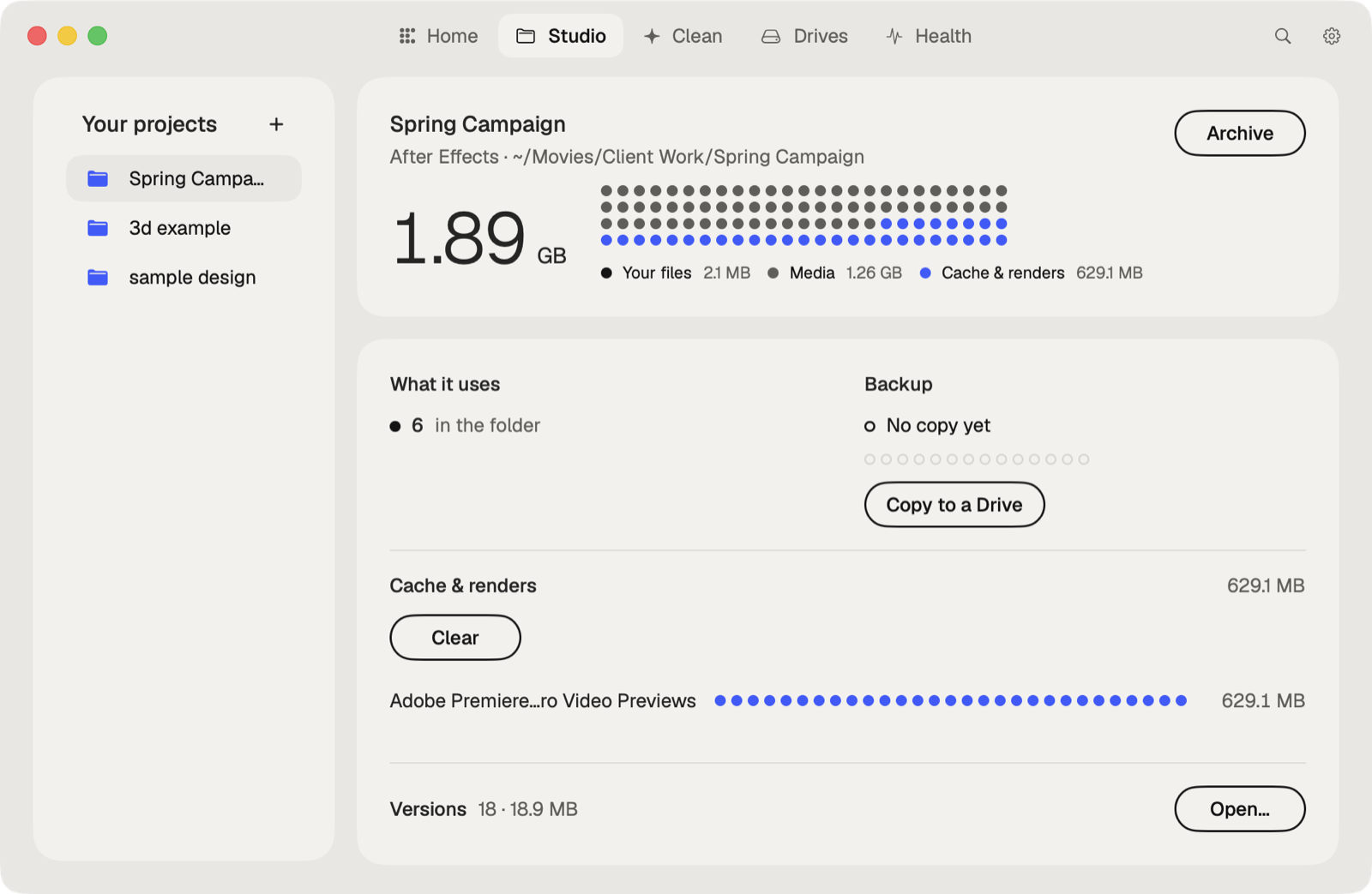
Caretaker finds duplicate and broken fonts, and duplicate audio plug-ins, for free. It keeps one copy and never offers macOS's own fonts. Everything goes to the Trash first and can be restored for 90 days.
Questions
Why does Font Book say I have duplicate fonts?
The same font is installed more than once, often in both your user and computer font folders, or in two versions.
Is it safe to delete duplicate fonts on a Mac?
Yes, as long as one copy stays. Font Book keeps one active, and macOS's own fonts can't be removed.