Check it in System Settings
- Open Apple menu > System Settings > Battery.
- Look at Battery Health.
- Click the info button (i) next to it to see Battery Condition and Maximum Capacity, the charge it holds compared with when it was new.
Find the cycle count
- Hold Option and choose Apple menu > System Information.
- Under Hardware, select Power.
- The cycle count is under Battery Information.
One cycle is a full battery's worth of use, not one charge. Using half on Monday and half on Tuesday is one cycle. The maximum depends on the model, and Apple lists it for each one.
Normal or Service Recommended
- Normal: the battery is working as expected.
- Service Recommended: it works, but holds less charge than when it was new. You can keep using it until you replace it with Apple or an Apple Authorized Service Provider.
Make it last longer
Optimized Battery Charging learns your daily charging routine and can wait to charge past 80% when it expects you to stay plugged in. Turn it on in System Settings > Battery, with the info button next to Charging (or Battery Health). On a Mac with Apple silicon and macOS Tahoe 26.4 or later, you can also set a Charge Limit between 80% and 100%.
The faster way: Caretaker

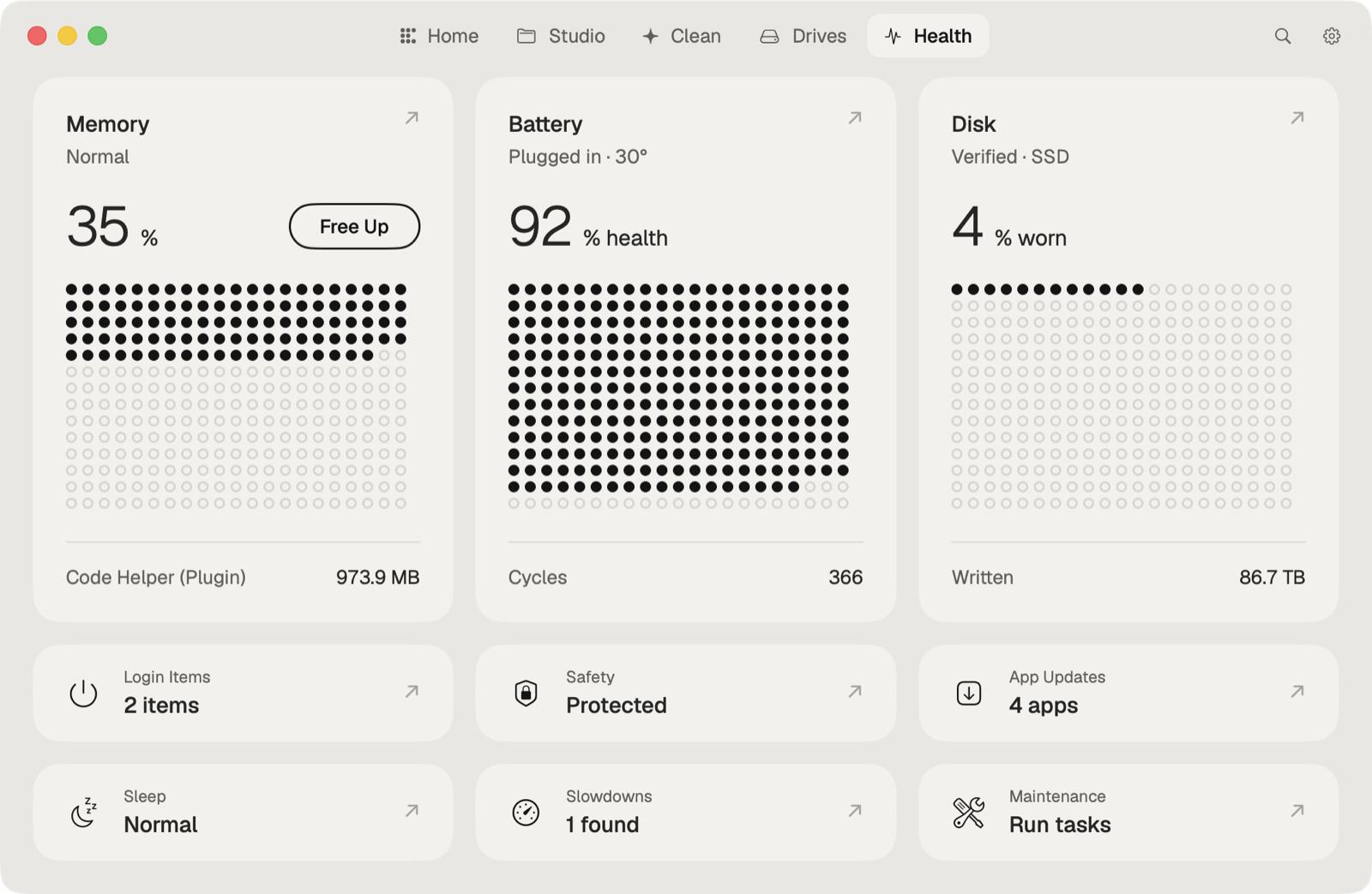
Caretaker's Health (free) shows the battery's condition next to disk, memory and temperature. With Pro it keeps a battery history and sends alerts, and Sleep & Battery shows where the battery went overnight.
Questions
What is a good battery cycle count for a MacBook?
It depends on the model. Apple designs batteries to keep up to 80% of their capacity at the maximum cycle count it lists for each Mac.
Can I keep using a battery that says Service Recommended?
Yes. Apple says it still works, but holds less charge than when it was new.