Remove them in System Settings
- Open Apple menu > System Settings > General > Login Items & Extensions.
- Under Open at Login, select an app and click Remove (–).
- Under Allow in the Background (called App Background Activity in macOS Tahoe), turn off the switch next to anything you don't need.
You need to be an administrator of the Mac to change these settings.
Where the files live
~/Library/LaunchAgents: agents for your account only./Library/LaunchAgents: agents an app installed for every user./Library/LaunchDaemons: system-wide helpers installed by an app.
Each is a .plist file, usually named after its developer. /System/Library/LaunchAgents and /System/Library/LaunchDaemons belong to macOS.

Is it safe?
Turning a switch off is safe and easy to undo. Deleting a .plist by hand is not: a helper for an app you still use can be what handles its updates, licence or drivers. Never touch the folders in /System. To get rid of a helper for good, uninstall the app it belongs to.
Extra tips
If the Mac is slow only at startup, too many login items are a common cause. If an item comes back after you remove it, the app adds it again on launch: look for an Open at login option in the app's own settings.
The faster way: Caretaker

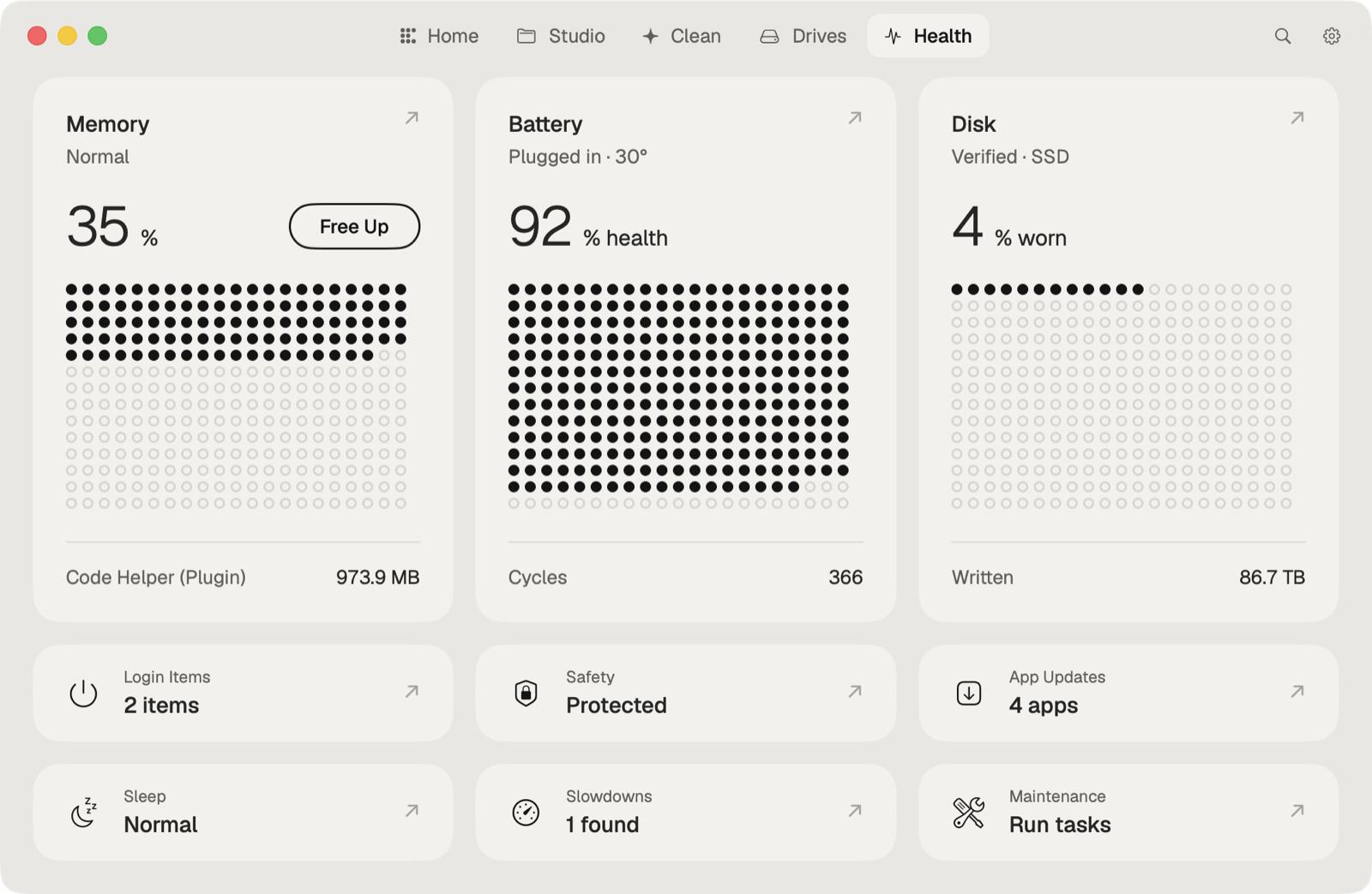
Caretaker's Background items (free) shows what starts with the Mac and what runs in the background. Its Uninstaller (free) removes an app together with everything it left.
Questions
Is it safe to turn off Allow in the Background?
Yes. The app still works when you open it, but it can't check for updates or sync while it's closed.
Why does an app keep coming back to Login Items?
The app adds itself again when it runs. Turn off its open at login option in the app's settings, or uninstall it.