Check profiles and extensions
- Profiles: open System Settings > General > Device Management. If it isn't there, no profiles are installed. A profile you didn't add can change your browser's homepage, search or proxy: select it and click Remove (–). If the Mac belongs to your work or school, ask them first.
- Safari: open Safari > Settings > Extensions. Turn off or Uninstall anything you don't recognize. Check your other browsers' extensions too.
Check login items and apps
- Open System Settings > General > Login Items & Extensions and remove anything you don't know.
- Look in
~/Library/LaunchAgents,/Library/LaunchAgentsand/Library/LaunchDaemonsfor files from names you don't know. - Check your Applications folder for apps you didn't expect, and uninstall them.
Check macOS protections are on
In Terminal:
csrutil statusshould say System Integrity Protection status: enabled.spctl --statusshould say assessments enabled, which means Gatekeeper is on.
In System Settings > Privacy & Security, Allow applications from should be App Store or App Store and Known Developers. XProtect, macOS's built-in malware check, updates itself. Apple says updating macOS, or restarting if you're up to date, removes known malware.
Avoid it next time
Download apps from the App Store or the developer's own site. Download sites can bundle other software with the app you wanted. In Safari settings, keep Block pop-ups and Fraudulent website warning on.
The faster way: Caretaker

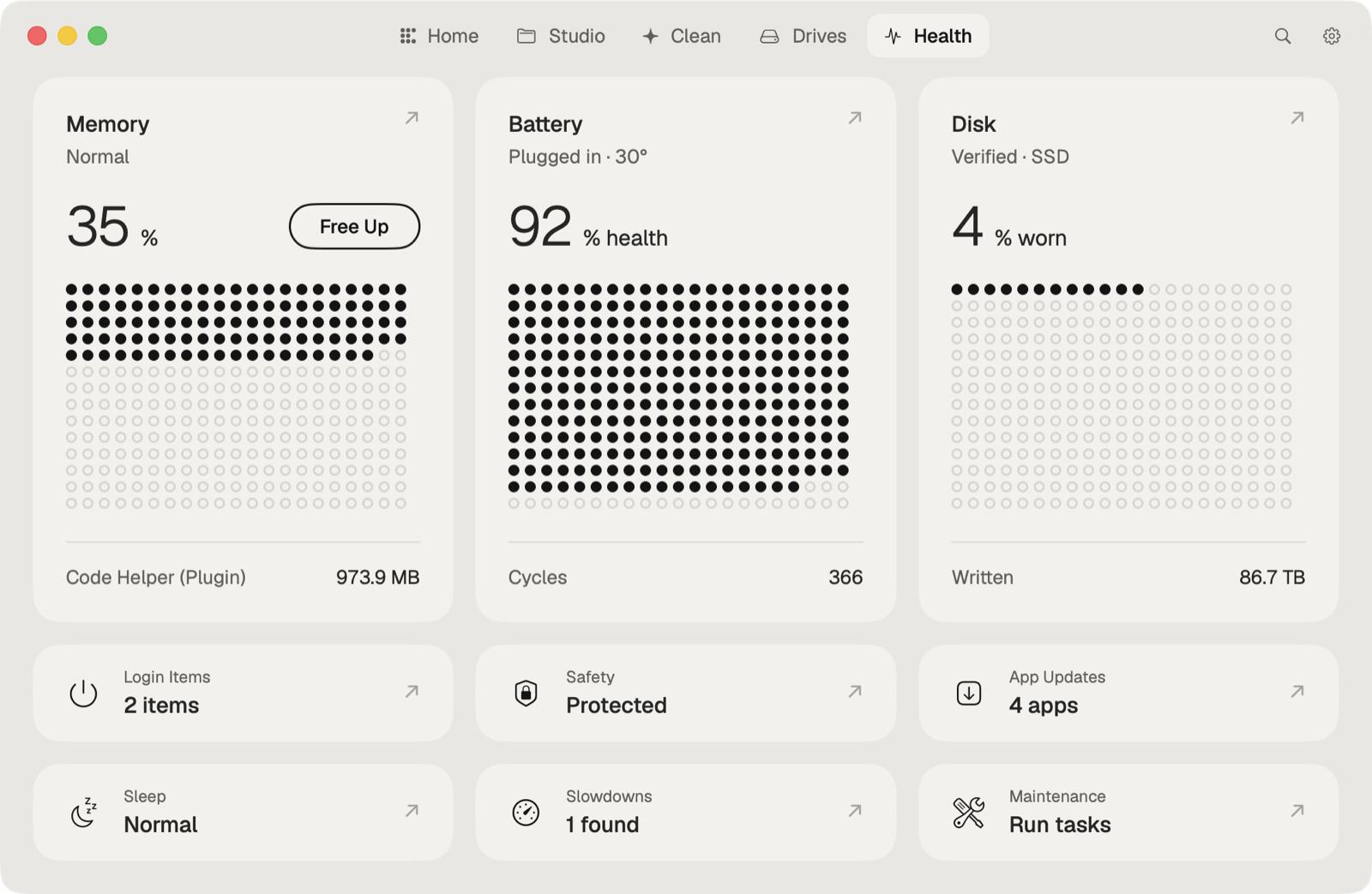
Caretaker's Security check (free) looks at macOS protections, adware, browser extensions and profiles in one place, and with Pro it removes the adware it finds. It isn't a full antivirus.
Questions
Can a Mac get adware?
Yes. It usually comes bundled with a free download, and shows up as pop-ups, a changed homepage or a new browser extension.
Does macOS remove malware on its own?
It removes known malware with its built-in tools. Apple says updating macOS, or restarting if you're up to date, runs that check.