Right after a crash
When Premiere Pro starts again it offers to reopen your projects as they were. Choose Reopen. The prompt doesn't come back once you dismiss it, so if you skipped it, use the Auto-Save folder below.
Open an auto-save file
- In the Finder, open your project's folder, then Auto-Save.
- Each file has the date and time in its name. A RecoveryProjects folder holds the file saved when Premiere Pro crashed or was forced to quit.
- Copy the version you want to your project folder, open it with File > Open Project, and save it under a new name.
Media links stay the same, so the project opens with your footage. If several projects were open at once, Adobe lists a known issue where all of them auto-save to the folder of the last one opened. Look there too.
If you saved over a good version
File > Revert only goes back to your last manual save. For anything older, open an auto-save file. If it's older than the last 20, restore the .prproj from Time Machine: open the project folder, open Time Machine, go back to before the change, select the file and click Restore.
Set Auto Save up
- Open Premiere > Settings > Auto Save and check Automatically save projects.
- Set how often it saves, in minutes, and Maximum Project Versions, how many copies it keeps.
- Saving backups to Creative Cloud is no longer supported for individual accounts. Keep the Auto-Save folder on a drive Time Machine backs up.
The faster way: Caretaker

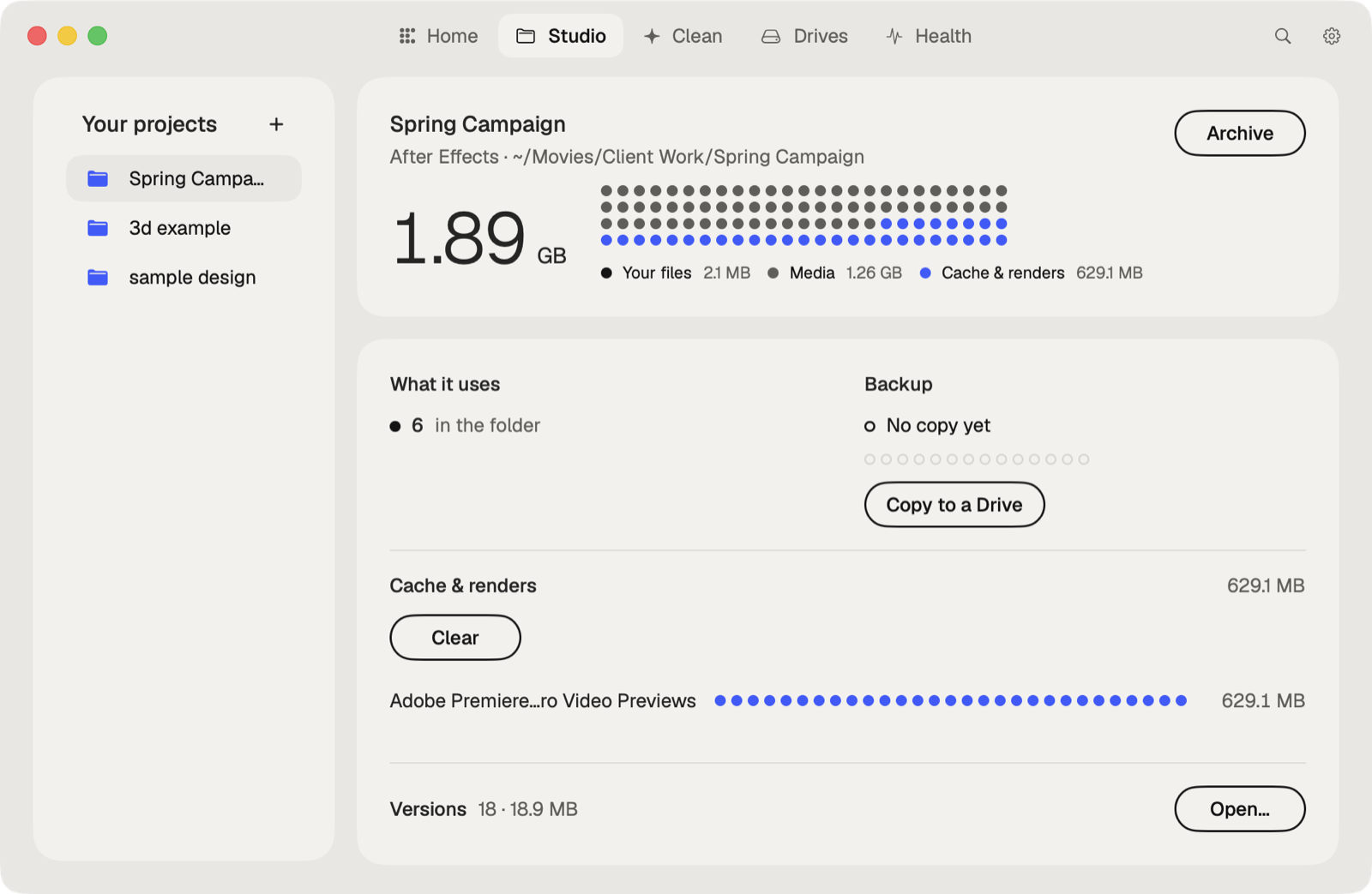
Caretaker's Studio shows when each project was last copied to another drive and makes a verified copy in one click, so an overwritten or lost project has a second home. It also clears Premiere Pro's media cache and render previews, and shows the clips a project uses from outside its folder.
Questions
Where are Premiere Pro auto-save files on a Mac?
In a folder named Auto-Save inside your project's folder, unless you set another location.
How often does Premiere Pro auto save?
Every 5 minutes by default, keeping the last 20 versions. You can change both in Settings > Auto Save.
More guides
- How to recover a previous version of a Photoshop file on a Mac
- How to recover an After Effects project from Auto-Save
- How to recover an Illustrator file on a Mac
- How to recover an InDesign file on a Mac
- How to recover an Ableton Live Set from a backup
- How to recover a Blender file from Auto Save
- How to restore a DaVinci Resolve project backup
- All guides