Where the cache lives
- Catalog: inside the catalog itself. Right-click the .cocatalog file, choose Show Package Contents and open Cache.
- Session: in the CaptureOne folder inside each image folder of the session, in a folder named Cache.
It holds Thumbnails (.cot), Previews (.cop) and focus masks (.cof).

Delete it
- Quit Capture One.
- Open the Cache folder as shown above and move its contents to the Trash.
- Open the catalog or session. Capture One builds previews again as you browse, which is slower at first.
What not to delete
Keep the Settings folders of a session (named like Settings166). Capture One never changes your raw files, so every adjustment is stored there. Keep the .cosessiondb and .cocatalog files too. When you back up a session, you can leave out Cache and Trash.
Make previews smaller
Previews are made at the size set in Capture One > Settings > Image > Preview Image Size. Capture One recommends matching your display, such as 3840 px for a 4K screen. To apply a new size to existing images, select them, right-click and choose Regenerate Previews.
The faster way: Caretaker

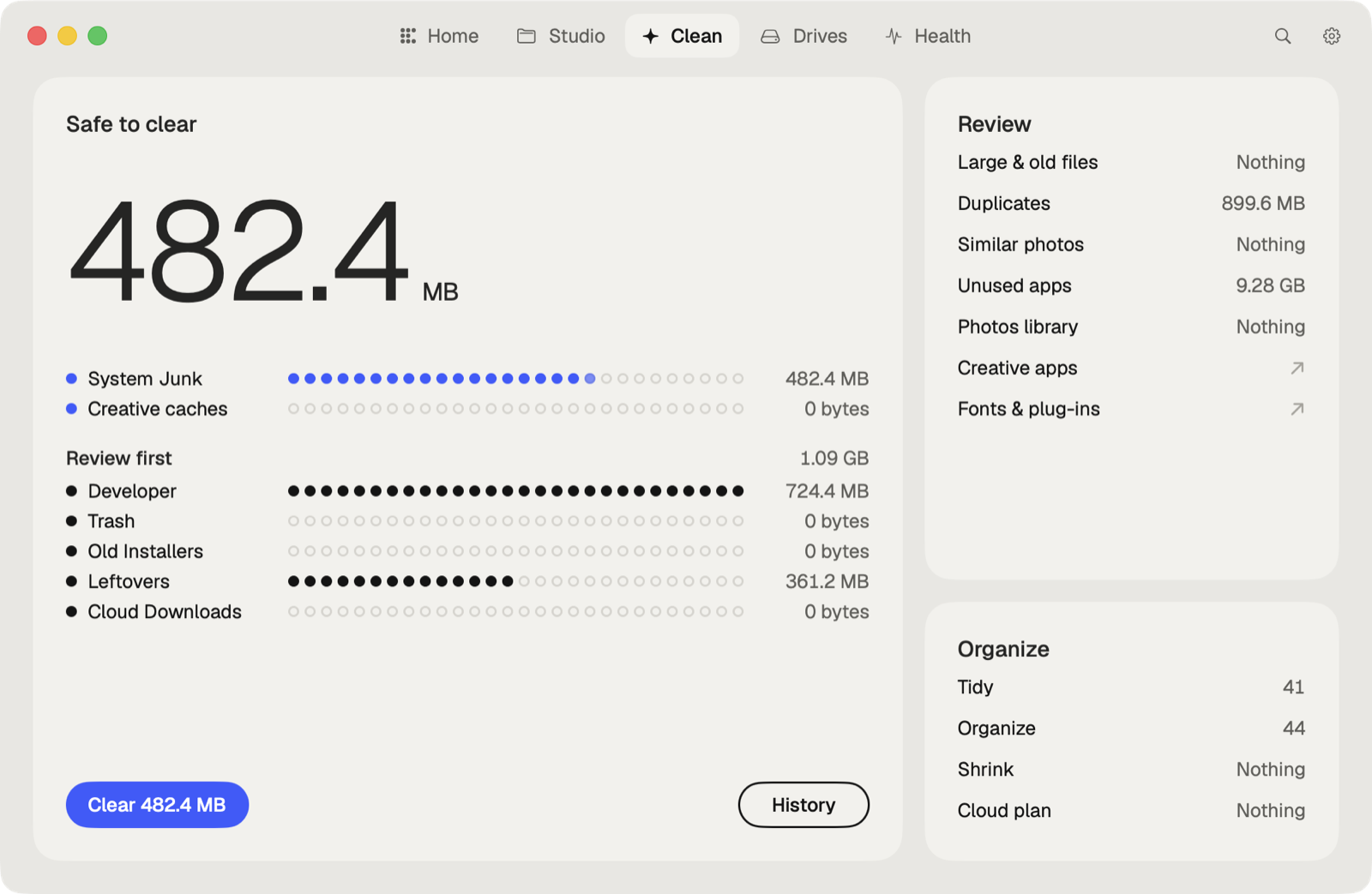
Caretaker clears Capture One's caches in ~/Library/Caches and shows how much they take. It also finds large files and duplicate files across your drives. Caches are deleted for good, since Capture One makes them again; large and duplicate files go to the Trash first and can be restored for 90 days.
Questions
Will deleting the Capture One cache delete my edits?
No. Edits are in the catalog or the session's Settings folders. The cache only holds thumbnails and previews.
Why is my Capture One catalog so big?
The catalog package includes the Cache folder with a preview of every image. A large Preview Image Size makes it bigger.
More guides
- How to clear the Premiere Pro media cache on a Mac
- How to empty the After Effects disk cache on a Mac
- How to delete the DaVinci Resolve render cache on a Mac
- How to delete Final Cut Pro render files
- How to clear the Lightroom Classic cache on a Mac
- How to fix "scratch disks are full" in Photoshop on a Mac
- How to delete old Adobe app versions on a Mac
- How to clear Blender cache and temp files on a Mac
- How to clear the Ableton Live cache on a Mac
- How to free up space from the Logic Pro sound library on a Mac
- All guides