Empty it in After Effects
- Open After Effects > Settings > Media & Disk Cache.
- Click Empty Disk Cache.
Or choose Edit > Purge > All Memory & Disk Cache to empty memory and the disk cache together.
Purge vs empty
- Edit > Purge > All Memory clears RAM only. RAM is also cleared when you quit.
- Empty Disk Cache clears the frames saved to disk, which stay between sessions and projects.
- Clean Database & Cache works on the media cache, not the disk cache, and only removes files whose footage is missing. Connect every drive with footage first.
Each version of After Effects has its own disk cache. Emptying one doesn't empty the others.
Where the disk cache lives
Usually in ~/Library/Caches/Adobe/After Effects/<version>/, in folders named Disk Cache and 3D Cache. Old versions you no longer use leave theirs behind.

Is it safe?
Yes. The disk cache only holds frames After Effects can render again. Your project and footage aren't in it.
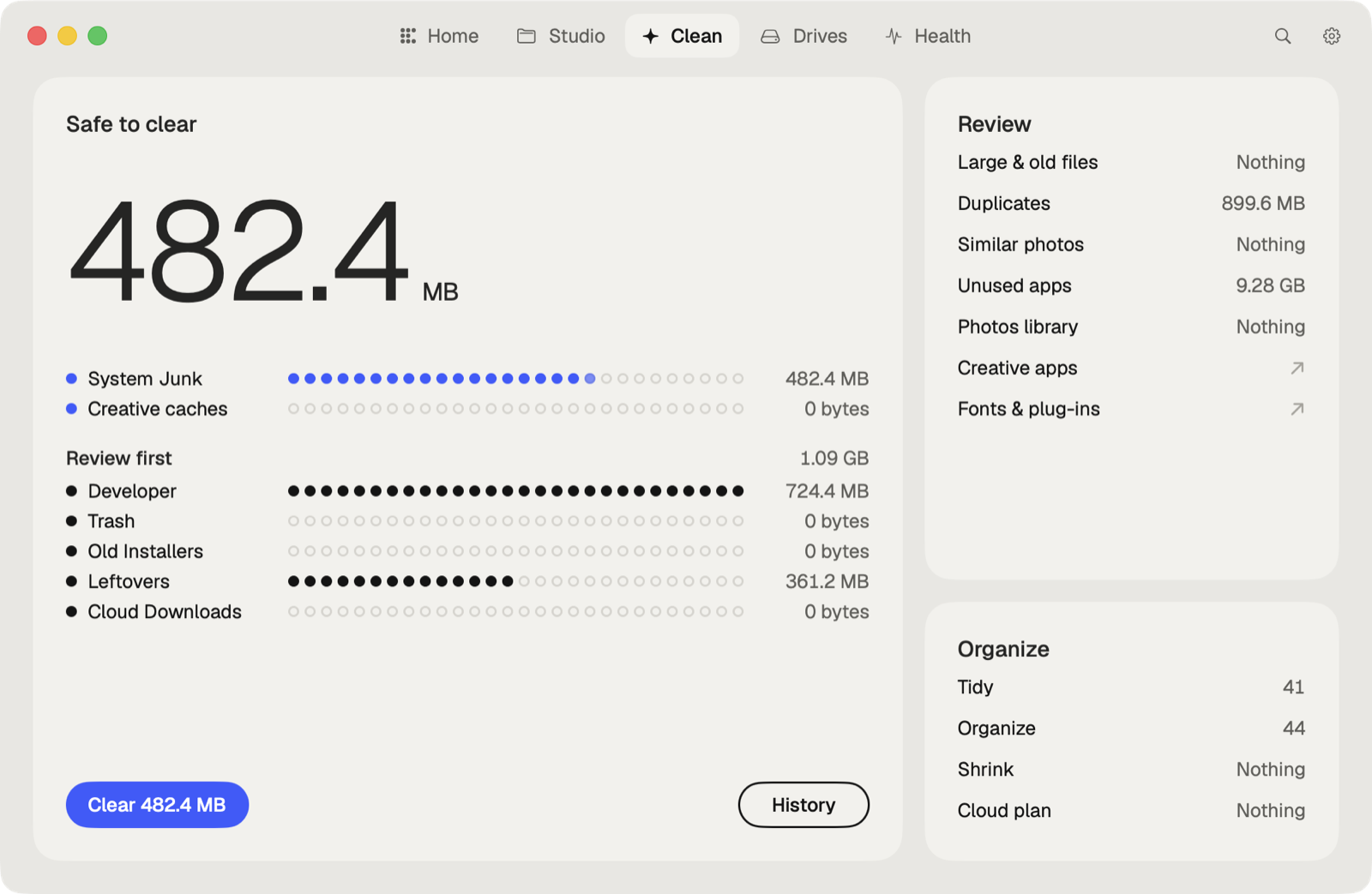
The faster way: Caretaker

Caretaker clears the After Effects disk cache, including what old versions left behind, together with the media cache Premiere Pro and After Effects share. They are deleted for good, since the apps make them again.
Questions
Why is my After Effects disk cache so big?
By default After Effects may use 10% of the disk, up to 100 GB, and each version keeps its own cache.
Does emptying the disk cache slow After Effects down?
Only until frames are cached again. The first playback renders them, then it's as fast as before.
More guides
- How to clear the Premiere Pro media cache on a Mac
- How to delete the DaVinci Resolve render cache on a Mac
- How to delete Final Cut Pro render files
- How to clear the Lightroom Classic cache on a Mac
- How to fix "scratch disks are full" in Photoshop on a Mac
- How to delete old Adobe app versions on a Mac
- How to clear Blender cache and temp files on a Mac
- How to clear the Ableton Live cache on a Mac
- How to free up space from the Logic Pro sound library on a Mac
- How to clear the Capture One cache on a Mac
- All guides