Delete them in Final Cut Pro
- Select the library in the Libraries sidebar.
- Choose File > Delete Generated Library Files.
- Select Delete Render Files and choose Unused Only or All. Select optimized and proxy media too, if you want.
- Click OK.
For a smaller scope, select an event, project or clip and choose File > Delete Generated Event Files, Project Files or Clip Files.
Is it safe?
Yes. Apple says these commands delete render, optimized and proxy files only, never original media. Final Cut Pro renders them again when you play or export.
Before you archive a library
Delete generated files before copying a finished library to an archive drive. It can make the library many times smaller.
The faster way: Caretaker

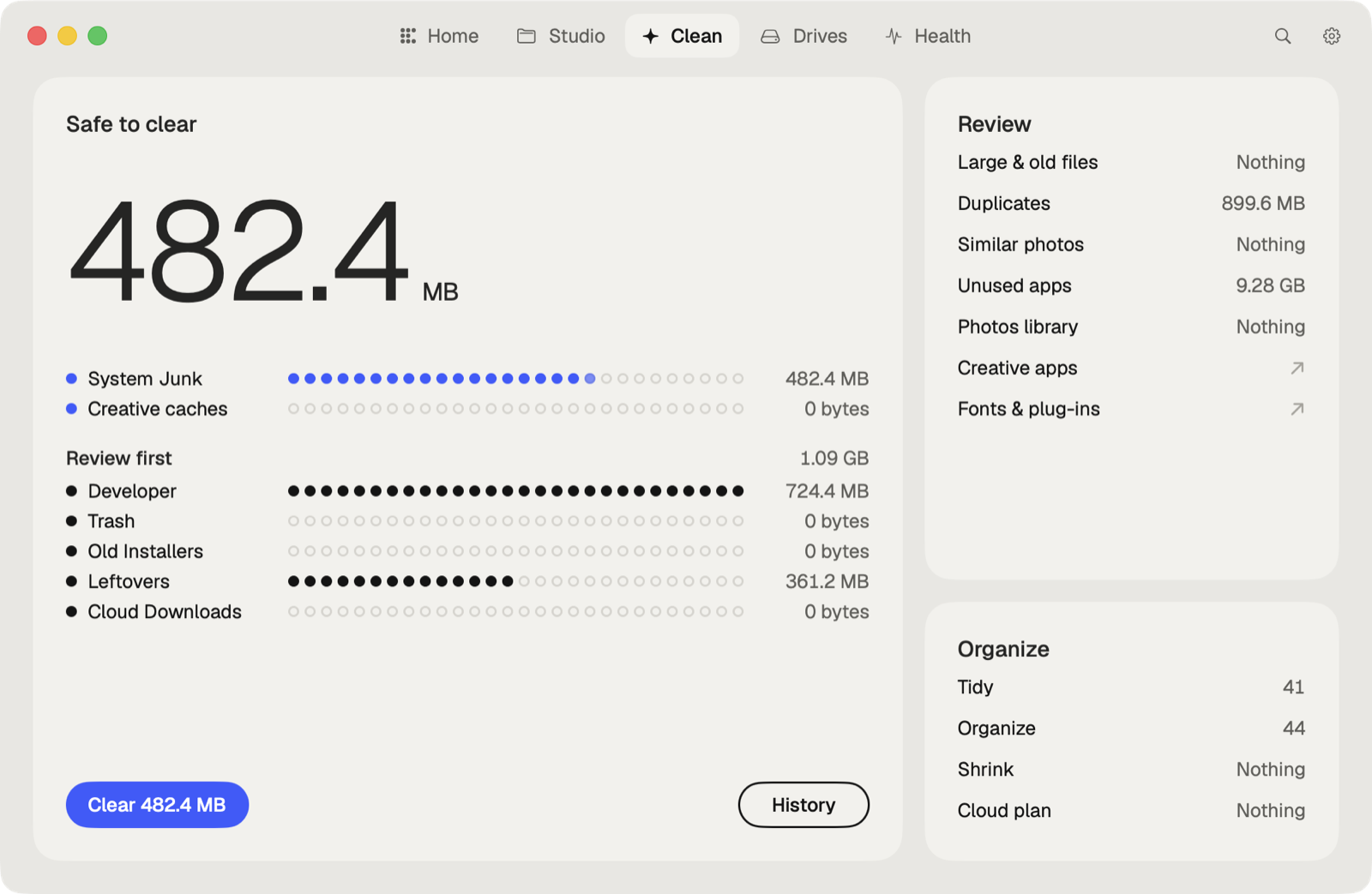
Caretaker finds the render files in every Final Cut Pro library on your Mac and drives, shows each one's size, and clears them in one click. Libraries you haven't touched in 30 days come pre-selected.
Questions
Where are Final Cut Pro render files?
Inside the library, in a Render Files folder for each event.
Will deleting render files delete my media?
No. Apple says original media is never deleted by these commands.
More guides
- How to clear the Premiere Pro media cache on a Mac
- How to empty the After Effects disk cache on a Mac
- How to delete the DaVinci Resolve render cache on a Mac
- How to clear the Lightroom Classic cache on a Mac
- How to fix "scratch disks are full" in Photoshop on a Mac
- How to delete old Adobe app versions on a Mac
- How to clear Blender cache and temp files on a Mac
- How to clear the Ableton Live cache on a Mac
- How to free up space from the Logic Pro sound library on a Mac
- How to clear the Capture One cache on a Mac
- All guides